
Art Master Matara — Digital Printing & Signage ERP
A tailored ERP and POS for Art Master Matara, connecting square-feet billing, detailed printing and signage invoices, customer-wise sales and due reports, cash reconciliation and 35+ reports in one business workspace.
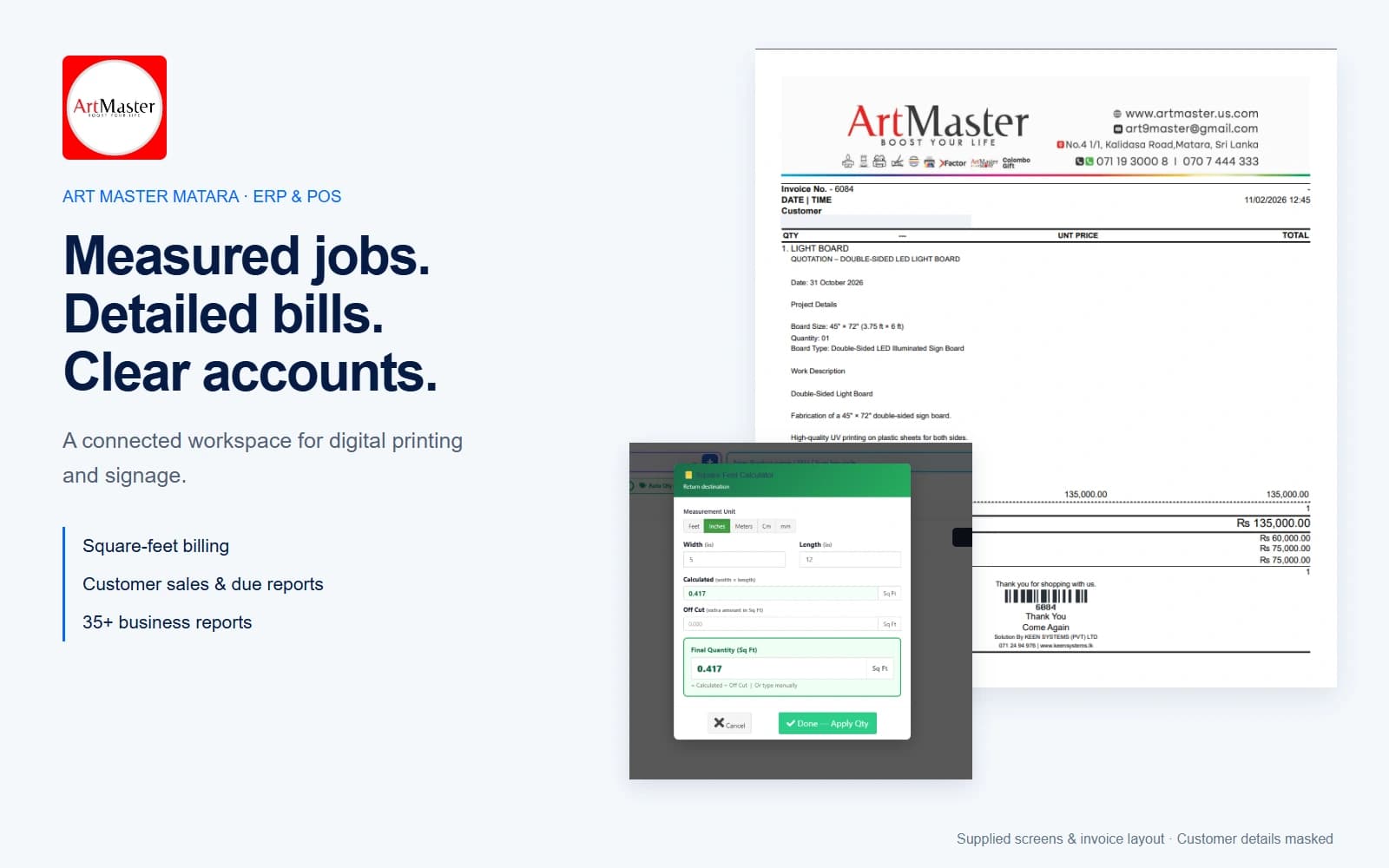
Built around measured jobs and customer accounts
An ERP for a creative production business
Art Master Matara is a digital printing service in Matara, Sri Lanka. Its work includes custom awards, trophies, indoor and outdoor name boards, light boards, wall art, invitations and personalised gifts made in Sri Lanka.
These jobs need more than a simple item counter. Dimensions influence quantities; job descriptions explain what will be produced; deposits and credit leave customer balances to follow up. Keen Systems brings those tasks into a connected ERP and POS workspace.
The real screens, explained one by one
Explore all fourteen supplied captures, including the original brand and both invoice designs. Enlarge any image to read the interface. Public copies mask customer and staff identity fields; captured amounts are historical examples rather than live figures.
A connected workspace from the first screen
The welcome screen introduces the connected Keen Systems ERP workspace before staff enter daily operations. It brings a consistent visual identity to the start of the working session.
- A single entry into the business workspace.
- The welcome artwork introduces platform modules; the working screens below show the Art Master workflows.
The daily business picture, in one place
The Art Master dashboard separates sales revenue, customer balances, purchasing, supplier balances, returns and business expenses. Location and date controls let staff review the relevant period.
- Read sales and unpaid customer balances separately.
- Compare daily or monthly sales trends.
- Captured amounts illustrate the interface; they are not live figures or promised results.
Measure the job inside the POS
Printing and signage jobs are often sold by area rather than by a whole piece. The Sq Ft control opens the calculator from the product line, keeping the measurement next to the item being billed.
- Keep the selected material, quantity and line amount in context.
- Use the same billing workspace for sheet material and other product lines.
Choose units, add off-cut and confirm the quantity
Enter width and length in Feet, Inches, Meters, Cm or mm. The calculator converts the area to square feet and rounds its calculated result to three decimal places. Off Cut is an extra area in square feet, added to the calculated area.
- Feet: width × length. Inches: width × length ÷ 144.
- Meters: area × 10.7639. Cm: area ÷ 929.0304. mm: area ÷ 92903.04.
- Final quantity = calculated area + off-cut; staff can also type a final quantity manually.
- Done — Apply Qty returns the chosen quantity to the POS line.
A real example: 5 inches × 12 inches
This supplied capture shows Inches selected, width 5 and length 12. The area is 60 square inches. Dividing by 144 gives 0.416666… square feet, displayed as 0.417 sq ft. With zero off-cut, the calculator final quantity is also 0.417.
- The unit conversion is visible before applying it.
- Off-cut remains a separate, explicit input rather than a hidden price adjustment.
The applied quantity drives the bill line
After applying the calculation, this supplied POS capture displays 0.42 square feet and a line amount of Rs 7,875.00. At the captured rate of Rs 18,750 per square foot, 0.42 × 18,750 = 7,875. This is the cart quantity shown in this example, distinct from the calculator’s 0.417 display.
- Review the applied cart quantity and line amount before payment.
- The example demonstrates the captured cart precision; it does not assume every installation uses the same quantity precision.
- Draft, quotation, credit sale, cash, card and multiple-payment actions remain available in the supplied POS.
From dimensions to square feet.
A local explanation of the delivered calculator. Start with the supplied 5 × 12 inch example, then try your own dimensions and off-cut.
The result below uses the calculator’s three-decimal precision. The supplied POS capture above separately shows its applied quantity as 0.42.
- Calculated area
- 0.417 sq ft
- Area + off-cut
- 0.417 sq ft
Measurements stay in this page. No order or customer record is created.
Reconcile physical cash separately
Expected Cash in Drawer is a physical-cash calculation: opening cash + cash sales + cash due collections + Cash In − cash due payments − cash refunds − cash expenses − Cash Out. Card and bank payments remain visible in reporting without increasing cash in the drawer.
- The capture reconciles Rs 5,790 + Rs 1,800 − Rs 5,160 = Rs 2,430 expected cash.
- Sales receipts and payments collected against older invoices are separate.
- Register tools include product, payment, return and full-register reports.
Understand receipts, invoices and products sold
Payments by Method shows sales received, due collections, due payments, refunds, expenses and net payments per method. Sales Overview then separates invoices issued, the amount still outstanding on those sales, and net payments received.
- Invoice values and payment receipts are different totals.
- The product breakdown lists SKU, product, quantity and total amount.
- Older-invoice collections belong under Due Collections, not new invoiced sales.
Art Master’s identity carries through to the paperwork
Art Master is a digital printing service in Matara, creating custom awards, trophies, indoor and outdoor name boards, light boards, wall art, invitations and personalised gifts made in Sri Lanka. The supplied brand appears on the customer-facing invoice designs below.
- The original supplied logo is retained.
- The ERP supports a business whose orders need dimensions, specifications and clear customer balances.
A detailed invoice that explains the job
The detailed design records more than a product name: a 45 × 72 inch double-sided light board, its 3.75 × 6 foot dimensions, quantity, fabrication, UV printing on both sides, LED lighting and finishing. This makes the agreed work readable on the customer’s document.
- Brand header, invoice reference and job specification stay together.
- Line value, total paid, this invoice’s due and All Sales Total Due are separately labelled.
- The supplied document design is preserved; the private customer mobile is masked in the public copy.
A concise design for a simpler order
The second supplied design shows a shorter 30 × 30 inch double-sided light-board order. Product description, quantity, unit price and total stay aligned, followed by paid and outstanding amounts and a barcode reference.
- A compact document when the job needs fewer description lines.
- Payment and outstanding balance remain easy to find.
- Both invoice captures can be enlarged without cropping the original layout.
Sell → By Customer: invoice-by-invoice detail
Select a customer under Sell → By Customer, choose payment status and date range, then Apply. Tab 1 — Invoice View groups the customer’s items under each invoice, with invoice date and time, status, item code, serial number, MRP, sold price, quantity and line total.
- Each invoice has its own Total, Paid and Due summary.
- Invoice-number search helps locate a particular job.
- A print action supports a customer-facing review of the selected records.
The same customer history, item by item
Tab 2 — Item View places the selected customer’s invoice lines in one table. Invoice number and date remain beside each item, so staff can review repeat materials or jobs without opening every invoice individually.
- Search by invoice or item within the selected customer history.
- Compare item code, serial, MRP, sold price, quantity and line total.
- Read total items, total sale amount, total paid and total due together.
Customer Wise Due Report: focus on collections
The Customer Wise Due Report groups outstanding invoices beneath each customer. Bill date, total bill, paid amount and balance due are visible per invoice, alongside Partial or Due status. Each customer has a due subtotal and the report shows the filtered total due.
- Review which invoices make up a customer’s outstanding balance.
- Use filters to narrow the collection review.
- Export the report as PDF, Excel or CSV using the displayed controls.
All fourteen supplied screens and designs are included. The document preserves their full layout and masks private customer and staff identity fields.
View the public screen collectionFrom the counter to the collection review
The delivered system includes 35+ reports. The supplied screens highlight the daily dashboard, register reconciliation, payments by method, sales overview, products sold, customer invoice view, customer item view and Customer Wise Due Report.
Sell → By Customer explains a selected customer’s sales in two ways: grouped by invoice or combined into an item table. The separate Customer Wise Due Report supports collections by grouping unpaid and partly paid invoices under each customer, with filtered totals and PDF, Excel and CSV exports.
Register reporting separates invoice values, money received and expected physical cash. This helps staff discuss the same figures without confusing new sales with older-invoice settlements.
Questions about printing and signage ERP
What business was this ERP delivered for?
Keen Systems delivered the ERP for Art Master Matara, a Sri Lankan digital printing business creating signage, light boards, awards, trophies, wall art, invitations and personalised gifts.
How does the square-feet calculator work?
Choose Feet, Inches, Meters, Cm or mm, then enter width and length. The calculator converts the area to square feet, rounds the calculated area to three decimals, adds any off-cut entered in square feet, and lets staff apply the final quantity to the POS item.
How are inches converted into square feet?
Multiply width by length in inches and divide by 144. The supplied example is 5 × 12 ÷ 144 = 0.416666… square feet, displayed by the calculator as 0.417 sq ft.
What does Off Cut mean in this calculator?
Off Cut is an extra area in square feet. It is added to the calculated area to obtain the final quantity. The field is separate so staff can see and review the adjustment before applying it.
Can staff enter a final area manually?
Yes. The supplied calculator allows staff to type the final quantity manually before selecting Done — Apply Qty. The cart quantity and line amount should be reviewed before billing.
Can an invoice include printing job specifications?
Yes. The supplied Art Master invoice includes light-board dimensions, double-sided construction, fabrication, UV printing, LED illumination and finishing, followed by the item value, paid amount and outstanding balance.
What does Sell → By Customer show?
The report filters a selected customer’s history by payment status and date. Invoice View groups item details with each invoice and its Total, Paid and Due. Item View combines invoice lines in one searchable table with totals.
What is the Customer Wise Due Report?
It groups outstanding and partly paid invoices by customer, showing bill date, total bill, paid amount, due amount, each customer’s due subtotal and the filtered total due. The supplied screen includes PDF, Excel and CSV exports.
Are bank payments included in physical drawer cash?
No. Expected cash is based on opening cash and cash movements only. Bank, card and other non-cash receipts remain visible in the method report without increasing the physical cash drawer.
How many reports are included?
The delivered system includes 35+ reports. The case study demonstrates dashboard figures, register and method reporting, product sales, customer invoice and item views, and customer-wise due reporting using supplied captures.
Bring measured jobs and customer accounts together
Discuss your materials, dimensions, quotation and invoice layouts, customer payments and reporting with Keen Systems.
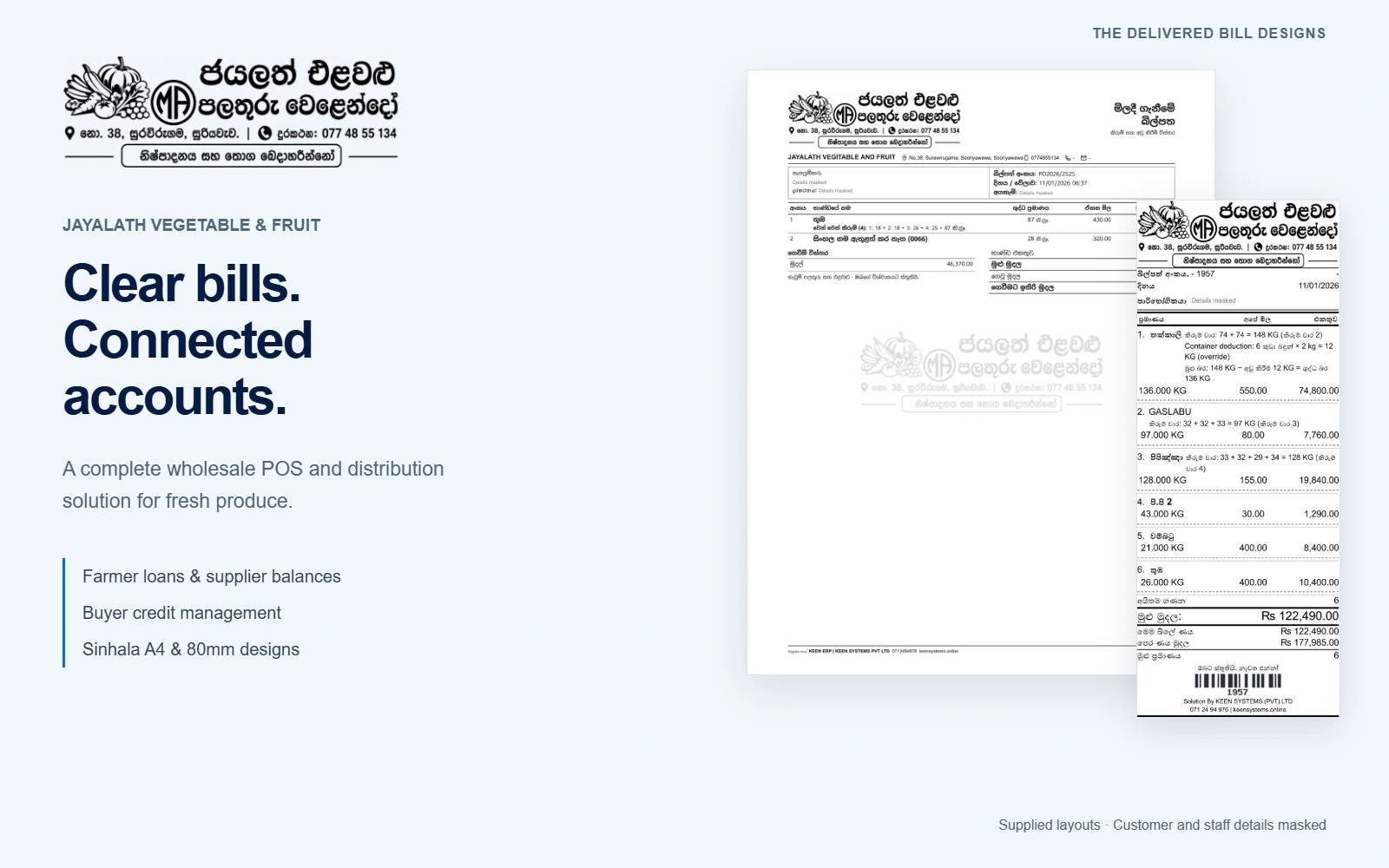 View project Fruit and vegetable wholesale & distributionJayalath Vegetable & Fruit — Wholesale POS & Credit ManagementA complete produce POS solution for Jayalath Vegetable & Fruit, bringing farmer accounts, supplier loans and advances, buyer credit, distribution and weight-based billing together with clear Sinhala A4 and 80mm bill designs.
 View project Pharmacy retailHealth Care Pharmacy Four-Branch Hybrid ERPA completed hybrid ERP implementation connecting Health Care Pharmacy's four branches, with 28 employees working simultaneously across pharmacy billing, purchasing and daily branch operations.
 View project Hospitality and private villa connectivityMonkey House Thangalle Whole-Property Wi-Fi ExpansionA whole-property TP-Link Omada Wi-Fi expansion for The Monkey House, Thangalle, designed to deliver reliable coverage across villa interiors, veranda and poolside areas without disturbing the property’s design.